Getting Started

Like most Mac software, Knox is a snap to install.

Step 1: Download Knox

After you download the Knox.zip file, double-click it to unzip it. (Your browser may be configured to do this automatically, in which case you can skip this step.)

Step 2: Install Knox

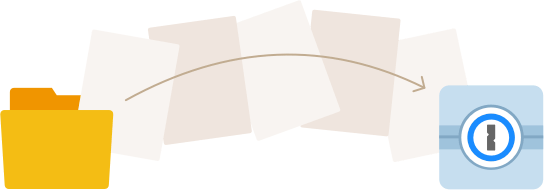
Once Knox.zip has been unzipped, you will have the zip file and the unzipped Knox application in your Downloads folder. To install it, drag it to your Applications folder.

Install Knox

Step 3: Start Knox

Start the application by opening your Applications folder and double-clicking Knox. When you do this, Knox will add itself to your menu bar at the top of the screen and immediately prompt you to create a new vault.

Start Knox

Knox resides, by default, in your menu bar. The first time you run it (and only the first time), it will point out its menu bar icon. On subsequent launches, Knox’s icon will appear in your menu bar but the “This is the Knox menu item” explanatory text won’t appear every time.

Step 4: Create a vault

Give your vault a name and password. Knox has a built-in password generator so that you can create a long, secure password for your vault. If you are a 1Password for Mac user, you can also use it to generate a password for you. (Currently there is no Knox-1Password integration, but it’s something we look forward to offering in the future.)

All that’s left to do now is to click the “Create” button. Knox will create your vault and automatically mount it for you, and you’ll see the vault icon appear on your Desktop.

Desktop

Step 5: Enjoy Knox!

That’s it! You are now ready to enjoy a more secure computing life with Knox. To add files to your encrypted vault, double-click the icon on your Desktop and drag files into it, just as you would any other drive or USB key.

If you have more questions about Knox, don’t hesitate to check our FAQs or contact us.