What is AllBookmarks?
Access All Your Browser Bookmarks
Don’t you hate it when you can’t remember where you bookmarked a website? Were you in Safari when you saved it, or Firefox? Heaven forbid you were in a browser you were just “test driving”. Perhaps you were testing out a browser, bookmarked a site, and then decided that that browser just wasn’t for you (no finger-pointing here!).
AllBookmarks helps reduce the pain of searching all your browsers for that lost bookmark. It lives in your menu bar and shows bookmarks from all of your browsers. One menu, all bookmarks.
Automatic Login With 1Password Bookmarks
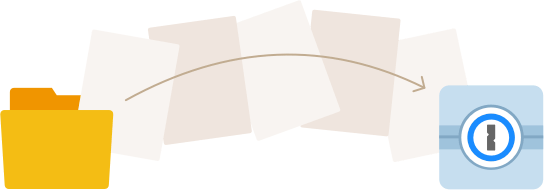
1Password is a password manager that integrates directly with browsers and securely keeps track of all your login information. AllBookmarks provides you easy access to all your 1Password logins. Just click on one, and you’ll be taken straight to the web site, and your login information will be automatically entered and submitted. Using these “1Click login” bookmarks, you can effortlessly and securely login to hundreds of websites without needing to type a single character!
1Password for Mac is available as a separate download from http://agilebits.com/products/1Password/Mac.
Quick Tips

- When you hover over a bookmark, the details bar at the bottom of the menu will tell you where it came from: 1Password, Safari, Firefox, Camino, and/or OmniWeb.
- If an bookmark is saved in more than one browser, such as Safari and Firefox, AllBookmarks will combine them into one item and show S+F (for Safari and Firefox) in the details bar at the bottom.
- If you go into a folder, and need to get back out, just click the arrow to the left of the search field.
- You can access the application menu for AllBookmarks by clicking on the gear icon in the top right corner. From here you can manage your Preferences, Check for Updates, manage which browsers’ bookmarks to display, access this help guide online, and quit the application.